Blogger dashboard: one store or all of them
How bloggers move between the stores they blog for, what the All stores and single store dashboards show, and where invitations live.
Written By Luke Rowley
Last updated About 7 hours ago
Pick a store, or see them all
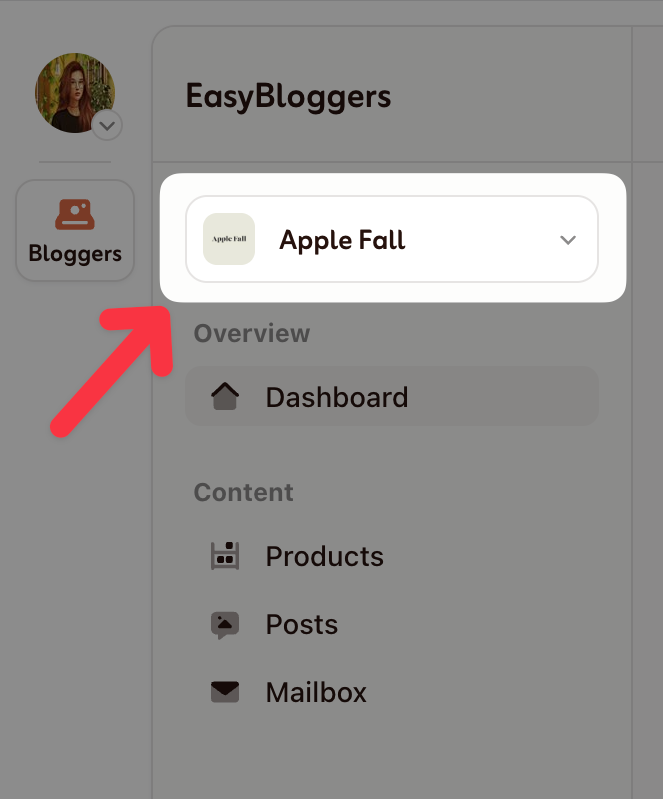
At the top of the sidebar, the store selector shows which store you are looking at. Choose All stores to see everything you blog for at once, or pick one store to focus on it. Every page of the blogger area (Dashboard, Products, Posts and Mailbox) follows that choice.
The store you pick is part of the page address, so you can bookmark a store's dashboard or posts page and come straight back to it later.
Switching stores keeps you on the same page: switch from the Posts page of one store and you land on the Posts page of the other.
Opening the app without a store in the address takes you to the last store you used.
On mobile, tap the store shown at the top of the screen to switch.
All stores dashboard
Four figures at the top
Pending deadlines: open posts that have a deadline, including the ones already missed.
Products available: total products you can request right now.
Posts in progress: every post that is not closed yet, whether it is in progress, waiting for review, needing updates or past its deadline.
Posts completed: posts that were accepted.
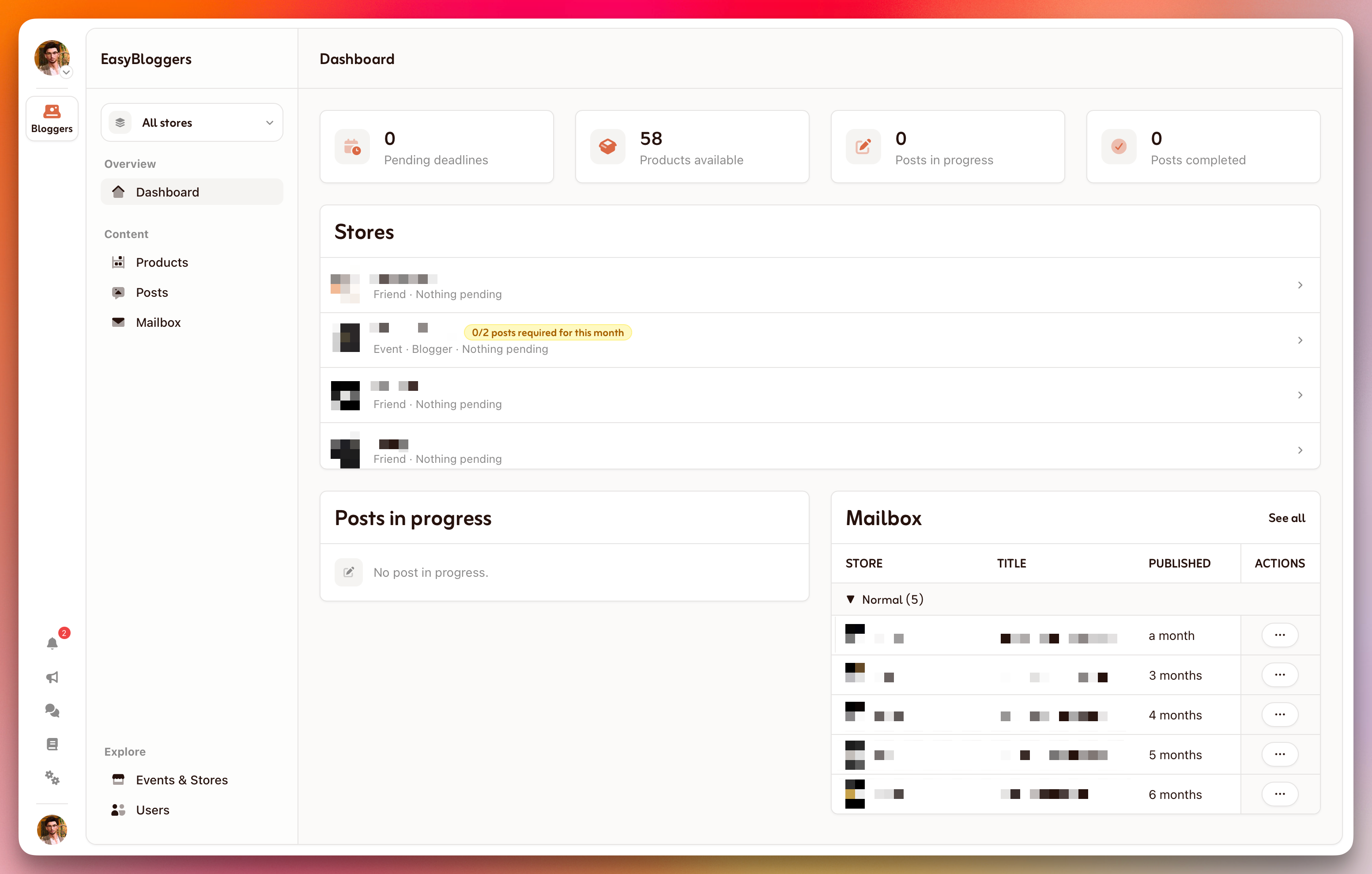
Stores
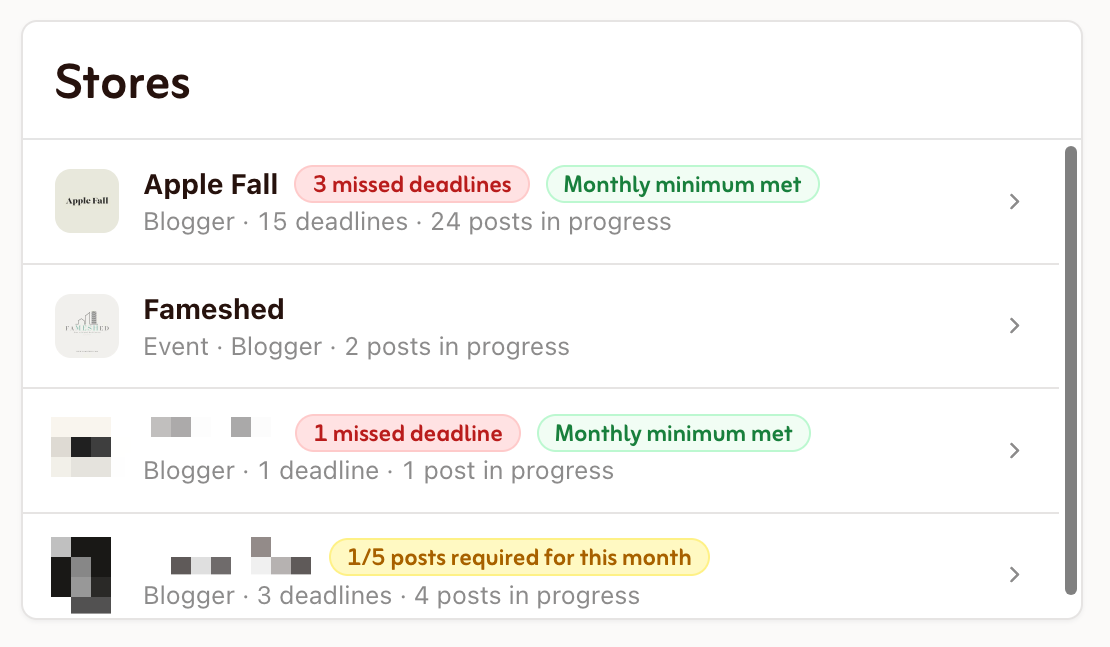
Every store and event you belong to, with what is waiting for you there. Two pills can appear next to a store's name:
A red missed deadline pill when one of your posts for that store is past its deadline.
A monthly minimum pill when the store requires a minimum number of posts per month: yellow with your progress ("1/2 posts required for this month") while you are behind, green ("Monthly minimum met") once you are there. Only accepted posts count, from the first day of the month.
Click a store to open its own dashboard.
Posts in progress and Mailbox
Your open posts, soonest deadline first, each with the store it belongs to, and the mails from all your stores with the important ones first. "See all" takes you to the full Posts or Mailbox page.
A single store's dashboard
Pick a store and the same four figures show that store alone, next to its profile card:
The owner and managers, the store's links, and its About text (click "About" to unfold it).
Minimum post per month: the store's requirement and how your month is going against it, with a bar that turns green once the minimum is met.
Products limitation: how many products you can hold at once before one of them needs an accepted post. Friends of the store are not limited.
After how many days a submitted post is accepted automatically.
The store's rules, when it has written some.
Your posts in progress and the store's mailbox sit beside the profile. Leaving a store is done from the bottom of its profile card.
Products, Posts and Mailbox
These pages follow the store selector too. In All stores, each row says which store it belongs to: on the Posts page, clicking the store switches the app to it, and the Products page lets you filter by store. Pick a store and the pages narrow down to it.
Invitations
Invitations to join a store or an event are personal, so they live in your profile menu (your avatar at the bottom of the sidebar, or at the top right on mobile) under Personal invitations. A red dot on your avatar and a line at the top of the All stores dashboard tell you when one is waiting.